
GP ECom Instructions for Creating Customers and Charging Cards.
This step-by-step guide is designed to assist you in creating a customer profile on the GP Ecom Portal before directing your patients to register their credit card for future payments.
Note: It is assumed that you have the necessary credentials to access the GP Ecom Portal (Sandbox and/or Production environments).
If you do not yet have these credentials, please contact your Global Payments representative to obtain them.
- Sandbox Credentials: These are used exclusively during the testing phase (provided by Datatel)
- Production Credentials: These will be required once you are ready to go live (provided by your Global Payments Representative)
If you need assistance at any time with any component of the GP Ecom Portal, please contact your Global Payments Customer Service Representative or reach out to the Global Payments Support Team directly for further help.
Inviting Your Customer To Register Their Card
Once you have completed all the steps outlined below and successfully created the customer profile in the GP Ecom Portal, you will be ready to invite your patient to register their credit card through your online payment portal.
Please note: This step is only required when inviting patients to register their card (without making a payment) via your payment portal.
Be sure to provide the patient with the Customer Reference you created for them this is the ID they will need to enter when registering their card.
Create Customer:
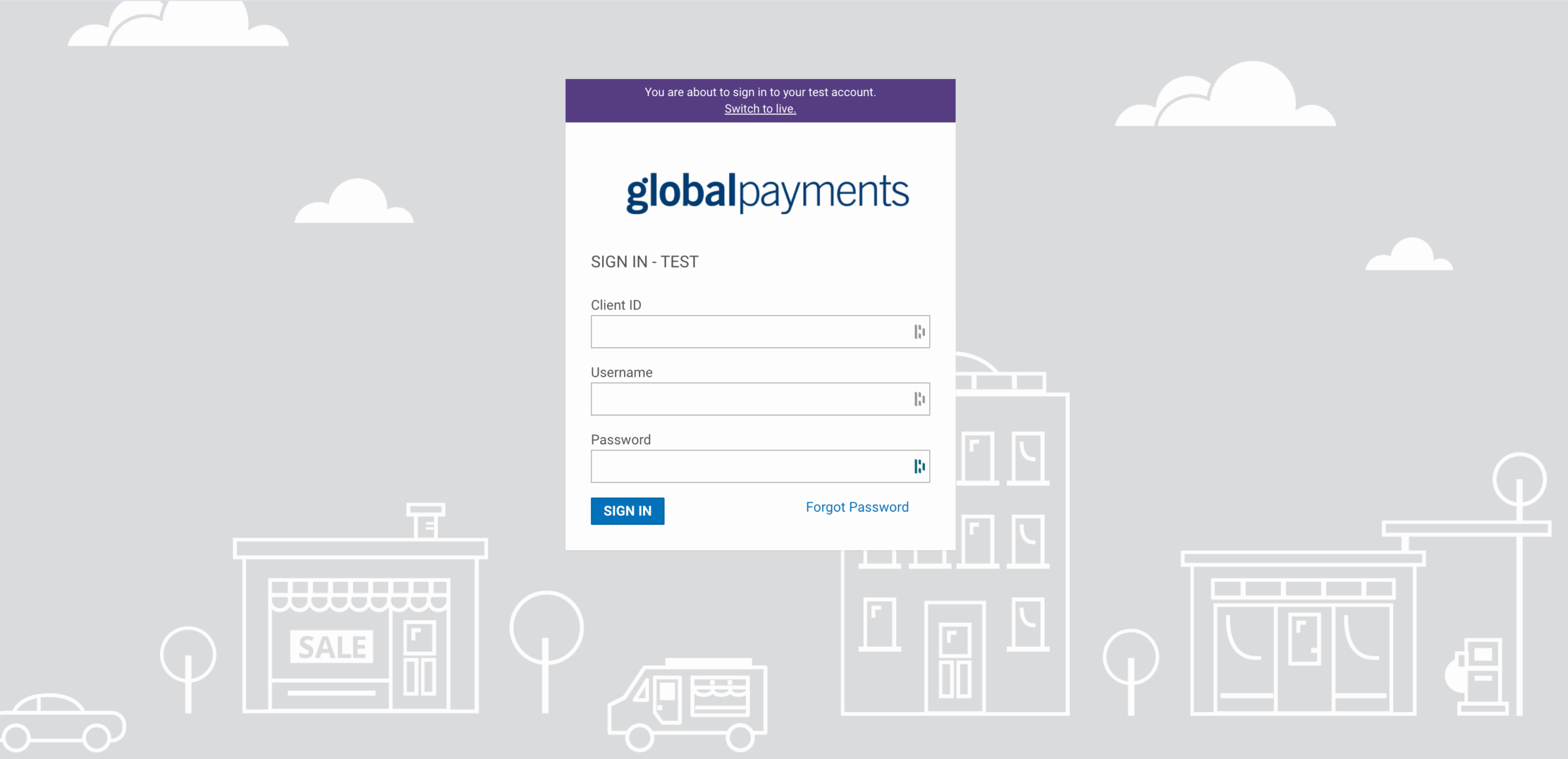
- Log into the GP Ecom Portal using Client ID, Username and Password and Click on Sign In.
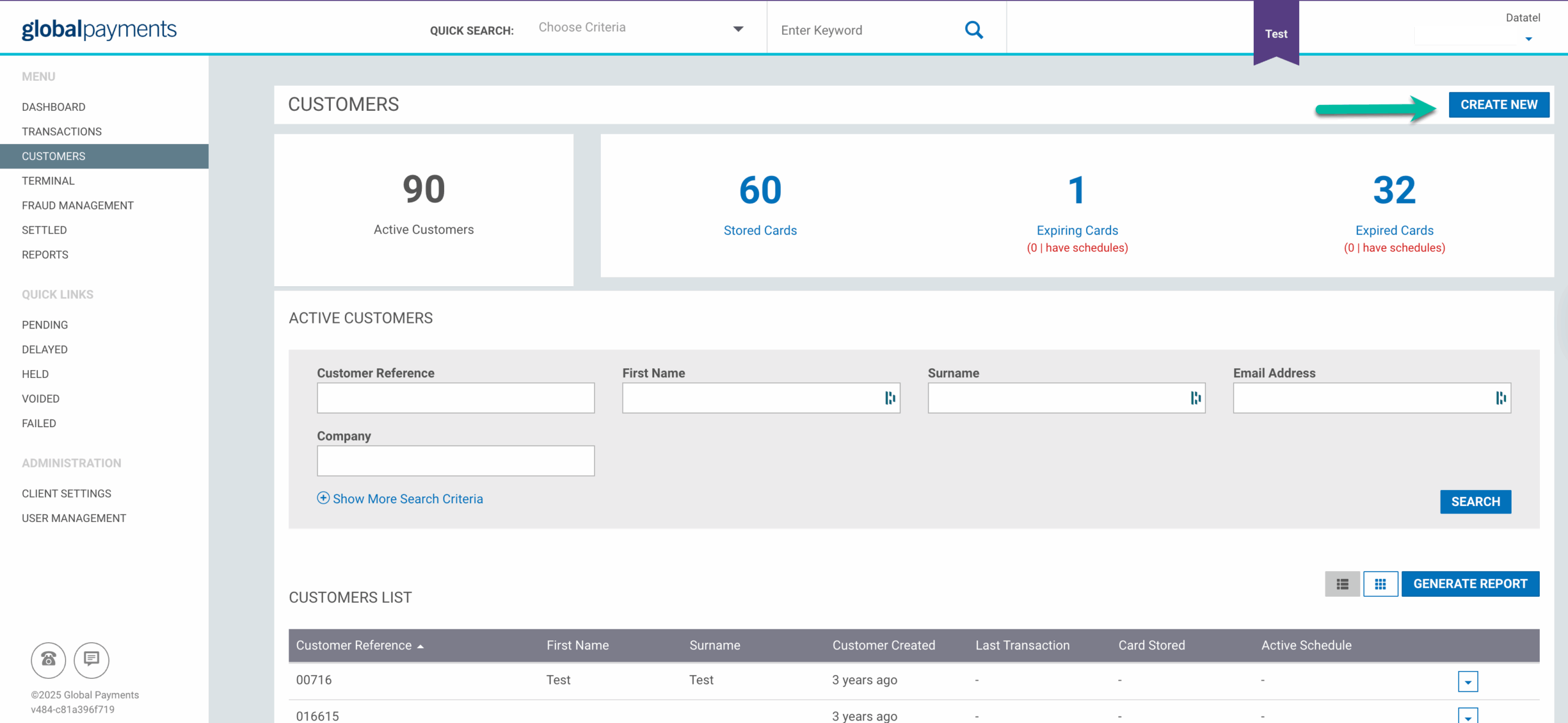
- Click on the “Customers” option under the Menu on the left pane.
- Click on the “Create New” option on top right.
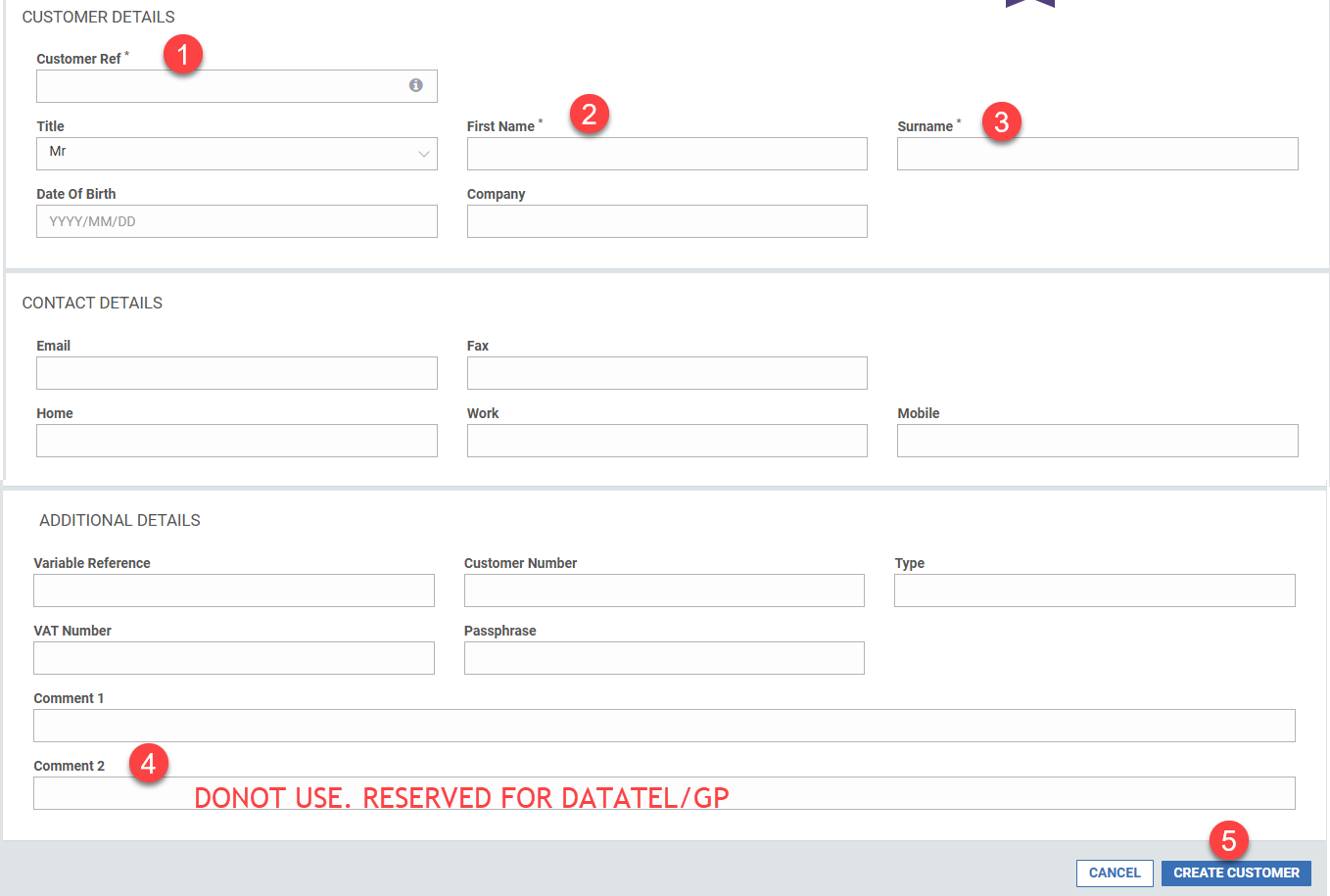
- Enter “Customer Ref” [This can be Patient’s MRN #, Guarantor #, Account # etc.]
- Choose “Title, Enter “First Name” and “Surname” [These are required fields]
- Enter any other optional fields if necessary.
- NOTE: “Comment 2” field under “Additional Details” is reserved for Datatel/GP. Leave it BLANK.
- Click on “Create Customer” at the bottom right.
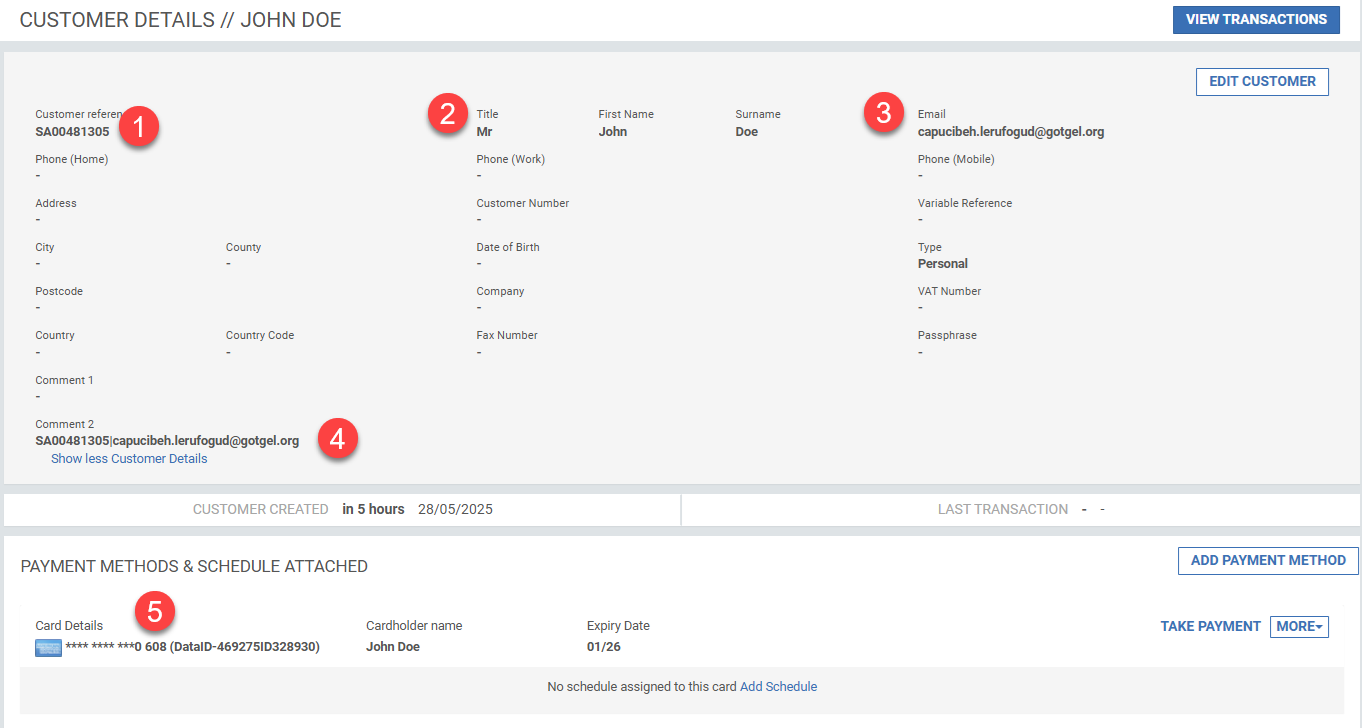
Review newly Created Customer with Customer Reference
- Review newly created Customer Details
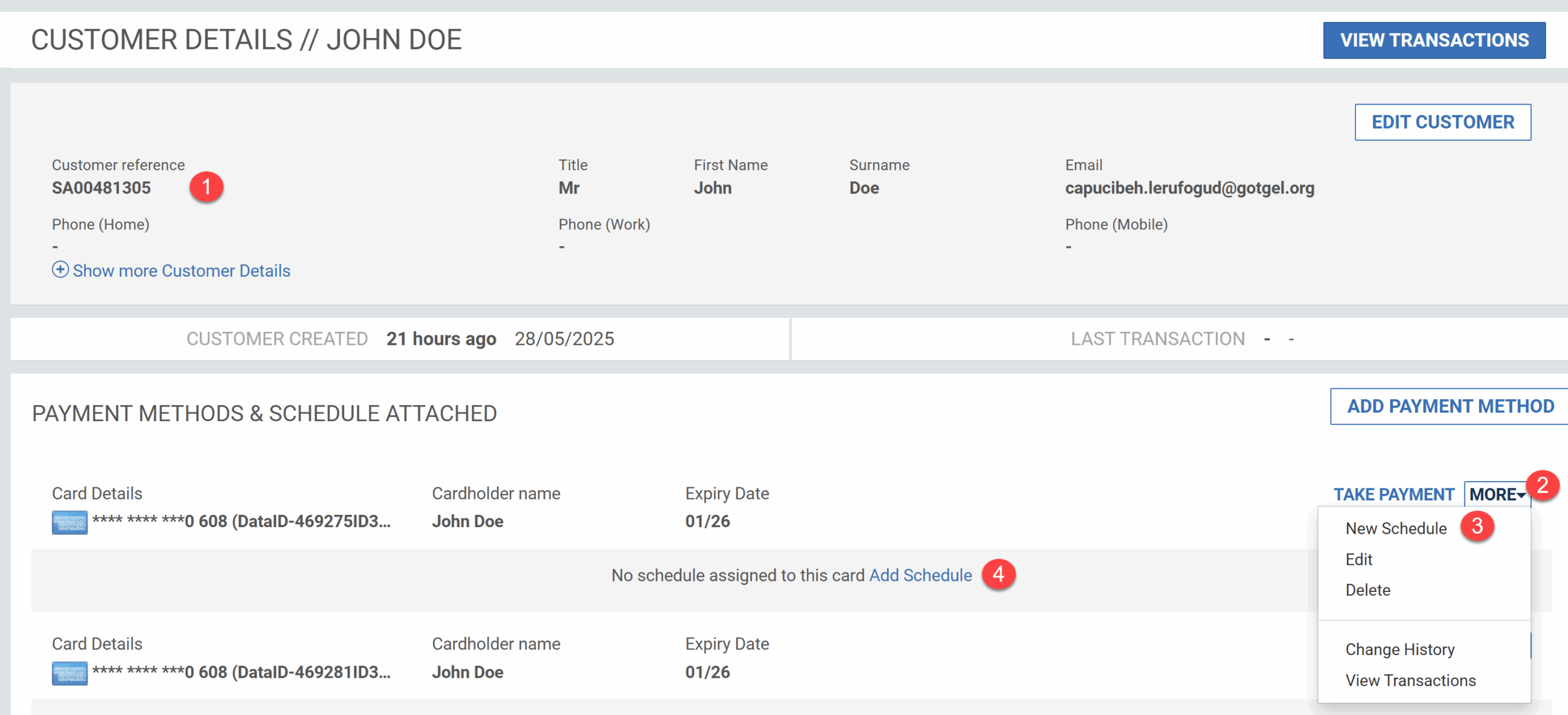
- Click on “+” for more Customer Details
- Review and verify entered Customer Reference, Title, First Name, Surname and any other details.
Upon successful creation of Customer, advice Patient to Register their Credit Card using your WebPay Healthcare Payment Website and Choose “Register Your Card”. Patient will now be able to Register their credit card.
“Search”, Review Customer’s Payment method and “Take Payment”
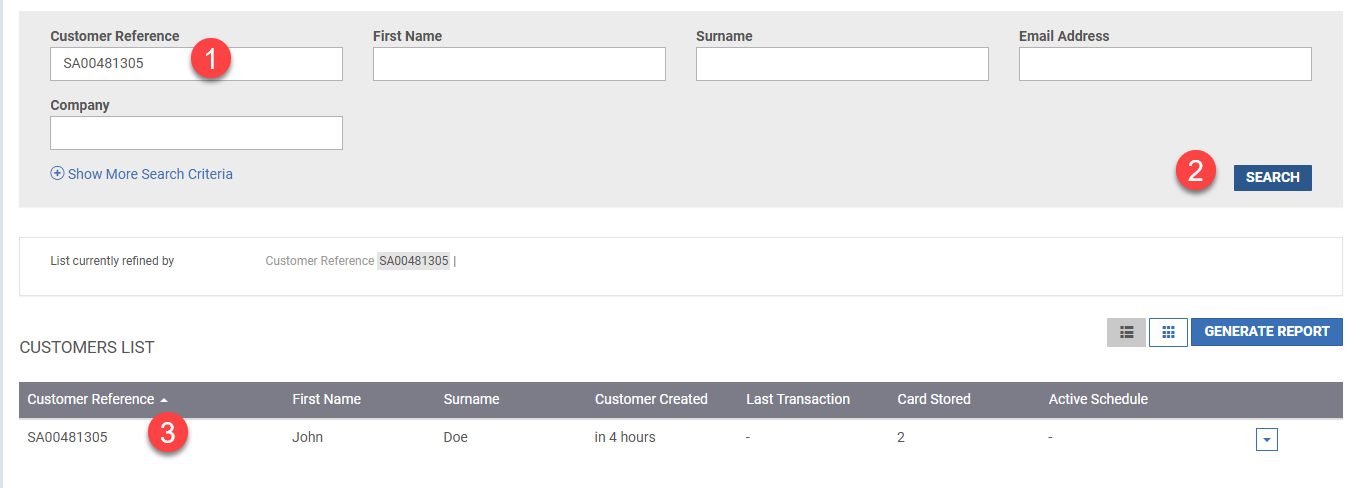
- Within GP Ecom Portal, Click on “Customers” under the menu in the left pane.
- Under “Active Customers”, enter “Customer Reference” and/or “First Name” and/or “Surname” etc. and Click on “Search”.
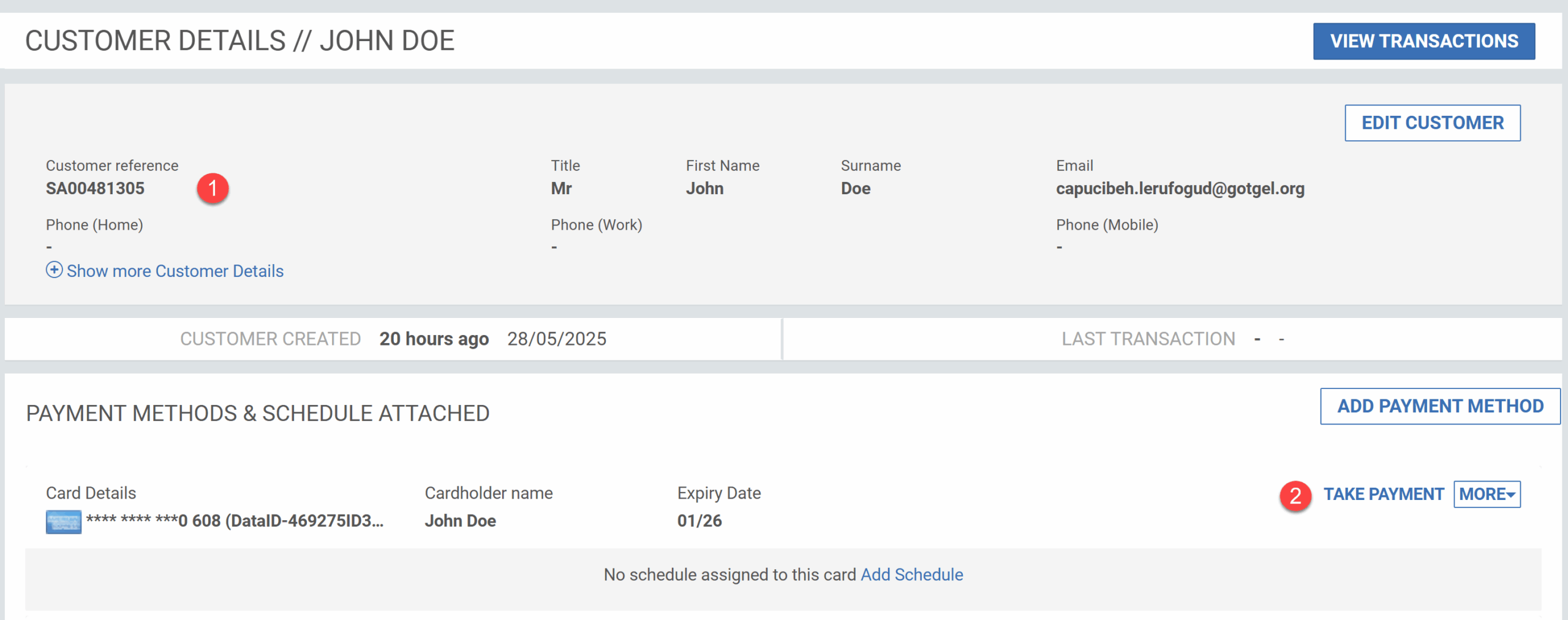
- Click on the “Customer Reference” under “Customers List”.
- Choose “Take Payment” for the “Payment Method” in question and follow the rest of the process.
Schedule a Payment
- Within GP Ecom Portal, Click on “Customers” under the menu in the left pane.
- Under “Active Customers”, enter “Customer Reference” and/or “First Name” and/or “Surname” etc. and Click on “Search”.
- Click on the “Customer Reference” under “Customers List”.
- Click on “MORE” dropdown and select “New Schedule” or Click on “Add Schedule” and follow the rest of the process.